Logitech MX Vertical vs MX Master 3S: A Long-Term Review After Living With Both
I’ve spent years using Logitech’s MX Master mice, and the MX Master 3S remains one of my favourite computer accessories. It has the sort of design that makes everyday work feel easier, from the wonderfully smooth MagSpeed scroll wheel to the thumb wheel that saves time when navigating wide spreadsheets and long timelines.
Then I developed tennis elbow.
My first instinct was to stop using my smartphone so much, particularly with my right hand. That helped me reconsider how I was using my hand and arm throughout the day, including at my desk. After watching more than a few vertical mouse reviews on YouTube, I decided to try the Logitech MX Vertical.
I now use both mice with my Macs. The MX Master 3S is my preferred mouse for productivity, while the MX Vertical gives me an alternative hand position during the working day. I also work across two desktop computers, which makes switching between the two particularly useful.
So, which should you buy? The MX Master 3S is the more capable all-round productivity mouse. The MX Vertical is worth serious consideration if a conventional mouse position feels uncomfortable. And, as I’ve discovered, buying both can make sense if you spend a large part of your day at a computer.
This is my long-term perspective on both, including their strengths, shortcomings, Mac software experience and the ergonomic considerations that influenced my decision.
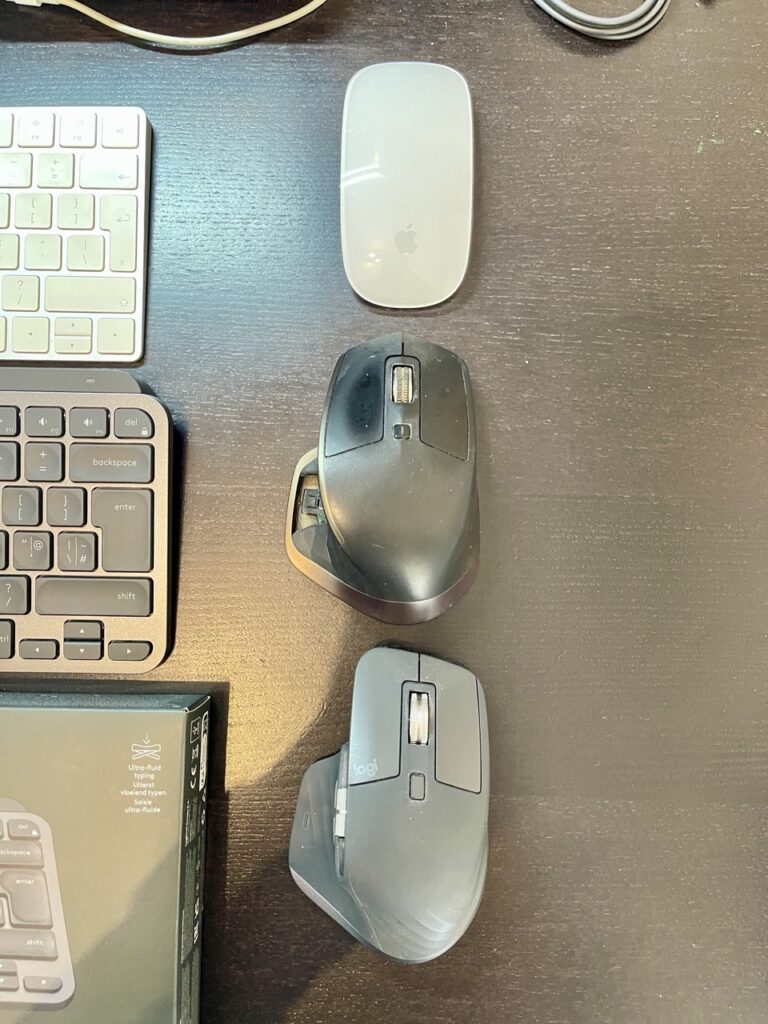
Logitech MX Master 3S: My Everyday Productivity Mouse
I love my MX Master 3S. In fact, I loved my previous MX Master mouse so much that I used it literally to bits.
The rubberised material around the thumb-rest click area eventually deteriorated. The outer layer disintegrated until the mechanical clicker underneath was exposed. It was a rather unglamorous end for a mouse that had served me so well.
If you’ve experienced the same problem and found a reliable way to repair the rubberised thumb rest, please share your solution in the comments. I’d be interested to know whether it can be repaired properly without replacing the entire mouse.
That wasn’t the only reason I upgraded. The old mouse had accumulated plenty of battle scars, its clicks had become noticeably louder, and its battery didn’t last as long between charges as it once did. After years of daily use, I felt it had earned its retirement.
The MX Master 3S was the natural replacement.
What I noticed after upgrading
The first thing I noticed was the quieter clicking. Logitech’s Quiet Click technology makes the left and right buttons much softer and less intrusive. There is still tactile feedback, so the buttons don’t feel completely lifeless, but the reduction in noise is welcome when working for hours at a time.
This also helped with my presentation and screen recording. Having softer or less audible clicks means no distracting clicks in my videos.
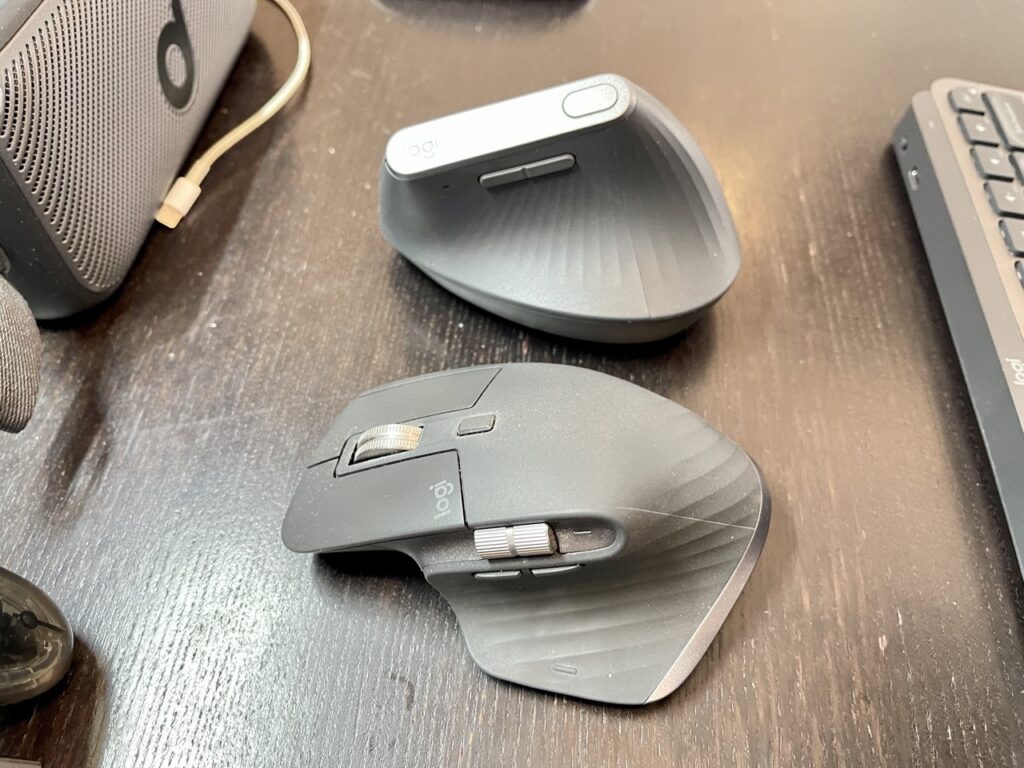
The scroll wheels also feel more substantial. The main MagSpeed wheel is a pleasure to use, switching between precise ratcheted scrolling and fast free-spinning movement. When I’m working through lengthy documents or web pages, I can cover a lot of ground with a single flick. Slow down, and the wheel gives me the control needed for more precise navigation.
The thumb wheel is equally useful. Horizontal scrolling through wide spreadsheets is an obvious application, although you can customise it for other tasks using Logi Options+.
One small design improvement I appreciate is the placement of the two side buttons. On my previous mouse, the positioning made it less convenient to move my thumb between the thumb wheel and the buttons. On the MX Master 3S, I find the arrangement more natural: my thumb moves up towards the wheel and down towards the back and forward buttons.
These changes might sound minor on paper. They become more noticeable when you use the mouse every working day.
The controls that make the MX Master 3S special
The MX Master 3S has seven customisable buttons, including the main clicks and the clickable scroll wheel, along with two scroll wheels. Its controls are particularly useful once you’ve adjusted them to suit your workflow.
| Control | What I use it for, or what it can do |
| Left and right buttons | Everyday selection, clicking and dragging, with quieter clicks |
| MagSpeed scroll wheel | Precise scrolling, rapid free-spinning navigation and middle-click |
| Wheel mode-shift button | Manually switches the main wheel’s scrolling mode |
| Thumb wheel | Horizontal scrolling, zoom, volume or application-specific shortcuts |
| Back and forward buttons | Browser navigation, file navigation or customised commands |
| Gesture button in the thumb rest | Hold and move the mouse to trigger gestures, such as switching desktops or accessing macOS Mission Control |
| Easy-Switch button underneath | Switches between up to three paired computers or devices |
| Power switch underneath | Turns the mouse on or off |
The Easy-Switch and power controls are separate from the seven customisable buttons. The gesture button is integrated into the thumb rest, so it isn’t immediately obvious until you know where to press.
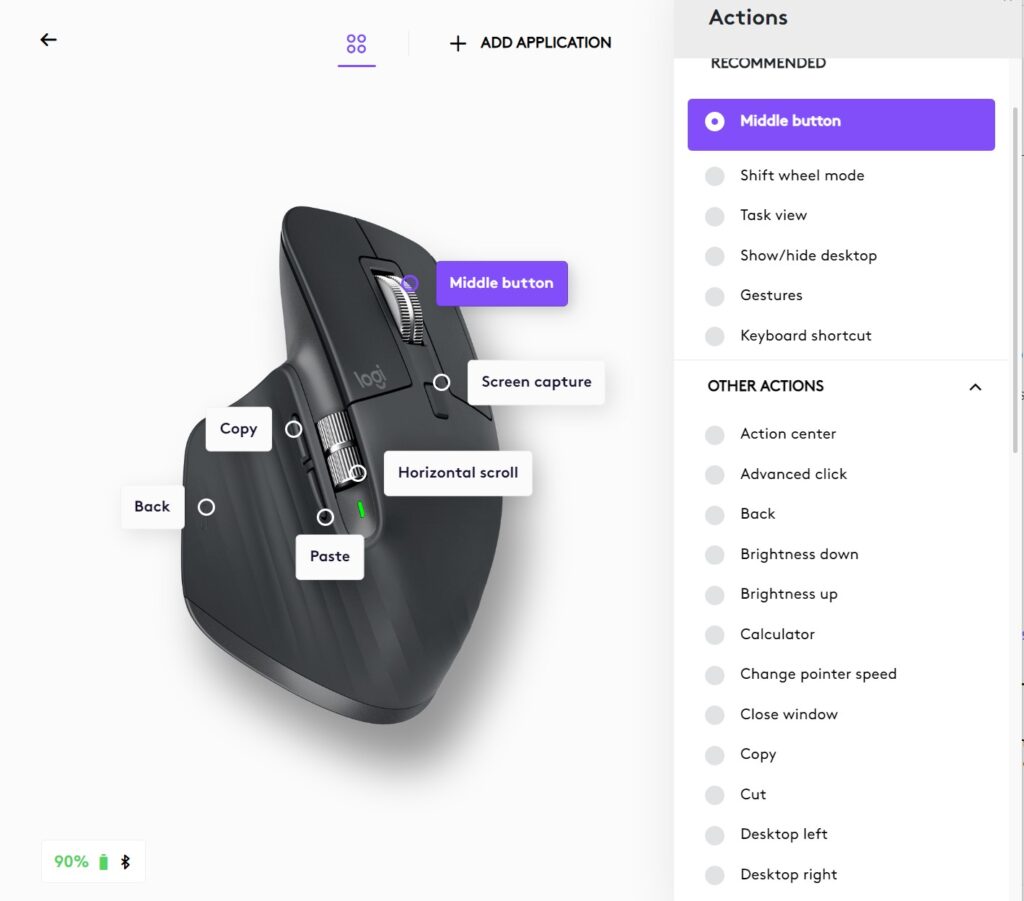
Out of the box, the mouse is perfectly usable without installing additional software. Install Logi Options+, however, and you can customise buttons, adjust scrolling and assign different controls to individual applications. A thumb wheel that scrolls horizontally in one application could control zoom or volume in another.
For someone who spends much of the day working across browsers, documents, spreadsheets and creative applications, that flexibility is a genuine advantage.
My biggest complaint: Logitech Options+
Logitech’s software is the least satisfying part of the experience for me.
I have both the original Logitech Options and the newer Logi Options+ installed on my Mac. Options+ is the relevant application for configuring the MX Master 3S, but I don’t find it particularly quick to start or especially straightforward to navigate.
There is another practical consideration on macOS. I need to make sure the application is permitted to run at login and that the relevant background components and permissions remain enabled. Otherwise, my custom button settings and other enhanced functions may not behave as expected.
I use Bluetooth rather than relying on a USB receiver. It keeps my setup simple and leaves a USB port available for something else. The mouse can also connect through Logitech’s Logi Bolt receiver, depending on the version supplied.
My advice is to install Options+ if you want the extra controls, configure the mouse properly and check that the settings continue to work after macOS or software updates. You can use the default controls without it, but that means leaving some of the MX Master 3S’s best features on the table.
My experience with the software isn’t unique. Reviews of the MX Master 3S have praised its customisation and physical controls while identifying limitations in Logitech’s software. Macworld’s review, for example, highlights the mouse’s quiet clicks, scroll wheel and multi-device functionality, alongside the limitations of the configuration software.
Source: Macworld – Logitech MX Master 3S review.
Did the MX Master solve my wrist RSI?
In my experience, using the MX Master mouse alongside an appropriate desk setup and better posture helped address my wrist RSI. I found it comfortable for extended periods, and that was a major reason I remained loyal to the MX Master range.
That experience matters to me, but it isn’t a guarantee that the same mouse will resolve somebody else’s wrist pain. Hand size, grip, desk height, forearm support, work habits and the nature of the discomfort all play a part. I also use a mouse mat with wrist rest which helps all day use.
My later experience with tennis elbow prompted me to reconsider the position of my hand during computer use. It was time to try a different design.

Why I Bought the Logitech MX Vertical
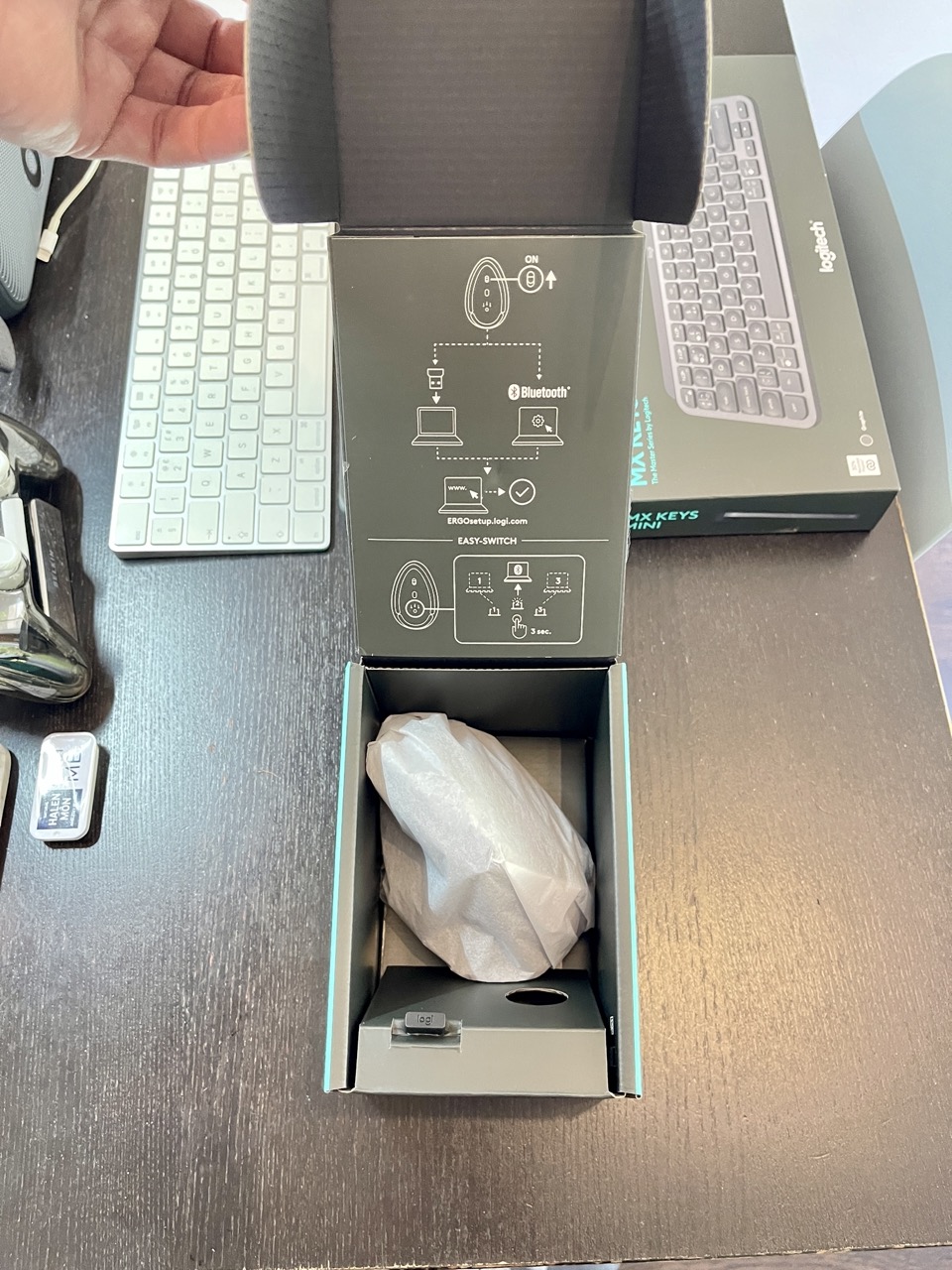
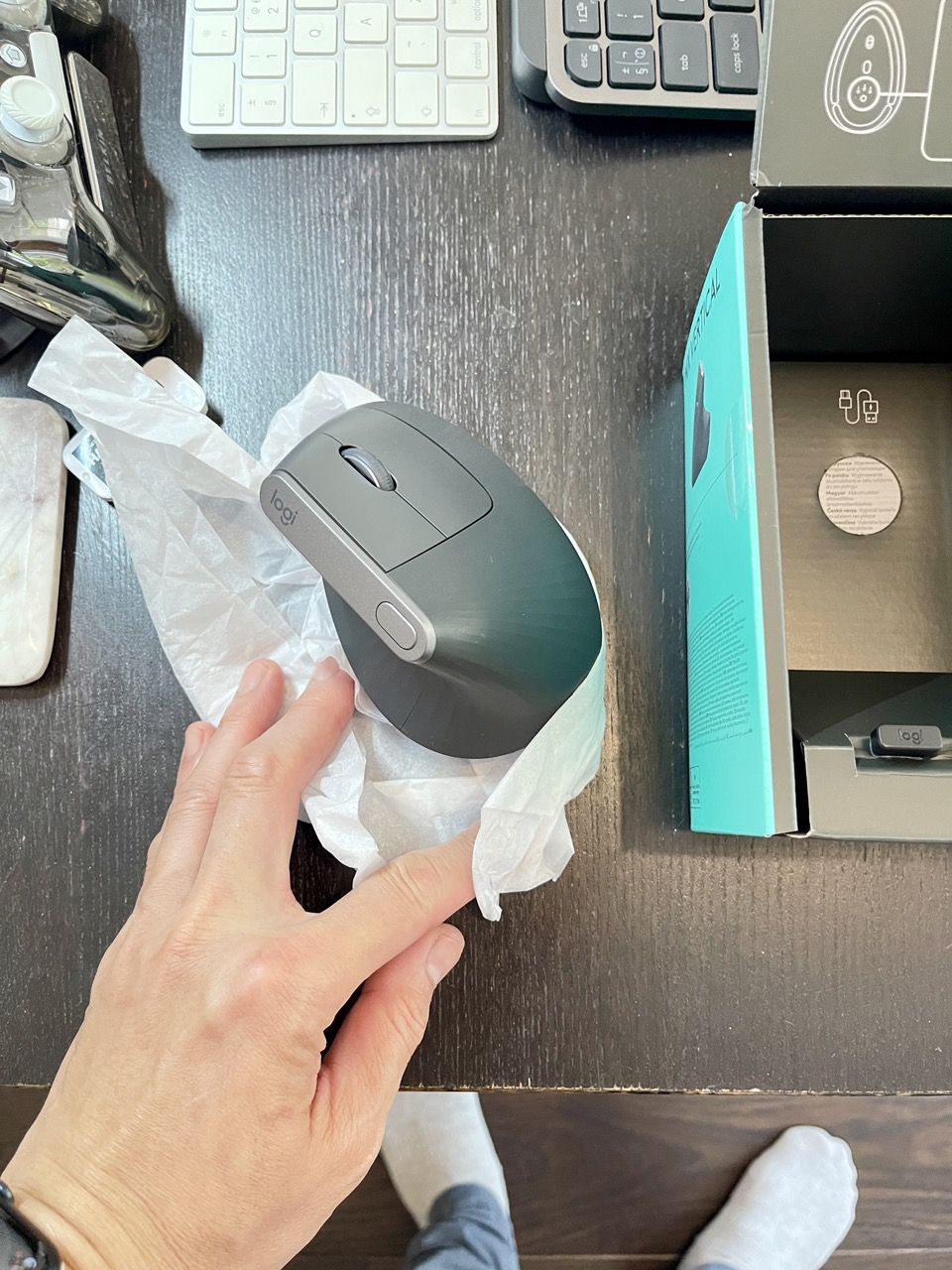
I had already trusted Logitech for years, so the MX Vertical was a logical place to start. I wanted a vertical mouse from a manufacturer with a track record in productivity peripherals, rather than spending time experimenting with several unfamiliar budget models.
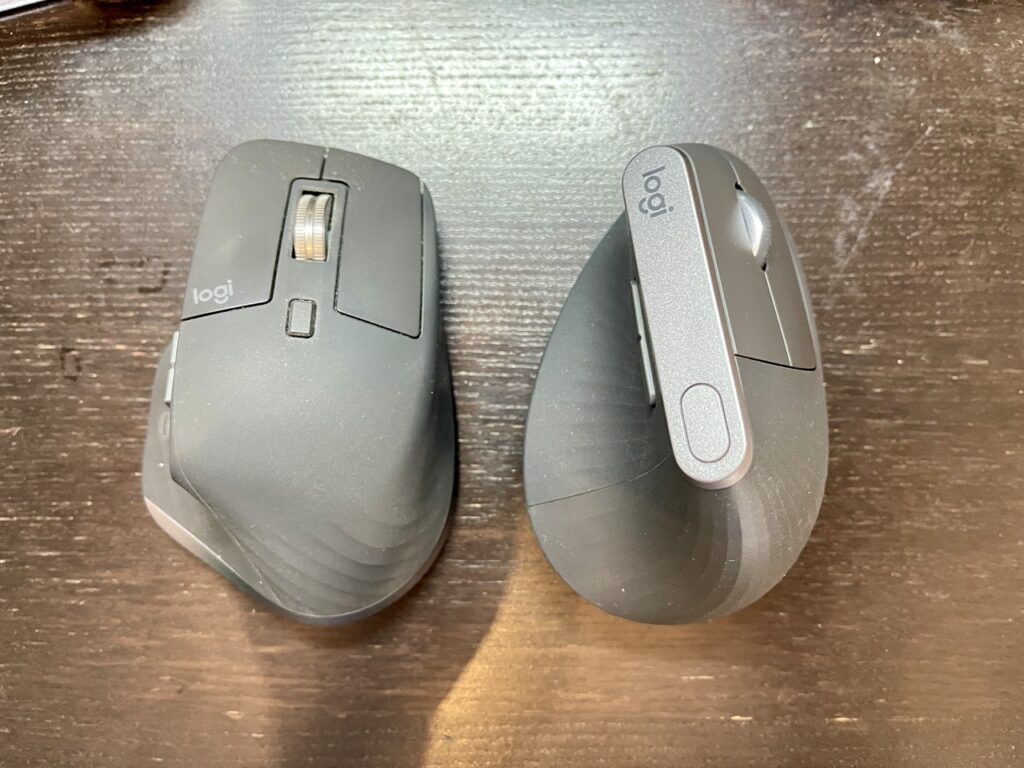
I also have fairly large hands, which influenced my decision between Logitech’s two main vertical mouse designs: the MX Vertical and the smaller Lift.
The MX Vertical has a 57-degree angled, handshake-style grip. Instead of resting my palm over a conventional horizontal mouse, I hold the device in a more upright position. My forearm doesn’t need to rotate as far into the palm-down position associated with many traditional mice.
Logitech says the design can reduce muscular activity by up to 10% compared with a standard mouse. That figure comes from the manufacturer’s ergonomic testing, so I wouldn’t treat it as a promise of a 10% reduction in pain or a guaranteed improvement for every user.
Independent research does support the underlying idea that mouse design affects wrist posture and muscle activity. A study comparing standard and vertical mice found reduced forearm pronation and lower activity in certain wrist and finger extensor muscles when using a vertical mouse. The researchers also found that users took longer to complete pointing tasks with the vertical mouse, suggesting that some familiarisation is needed.
Source: PubMed – Biomechanics and performance when using a standard and a vertical computer mouse.
MX Vertical vs Logitech Lift: Which size is right?
The Lift is smaller, uses a replaceable AA battery and has quiet-click buttons. The MX Vertical is larger, uses a rechargeable battery and has a more substantial shape that I find better suited to my hand.
| Feature | Logitech MX Vertical | Logitech Lift |
| Grip angle | 57-degree vertical handshake grip | 57-degree vertical handshake grip |
| Dimensions | 120 × 79 × 78.5 mm | 108 × 70 × 71 mm |
| Weight | Approximately 125 g | Approximately 125 g |
| Sensor | Darkfield laser | Optical sensor |
| Maximum sensitivity | 4,000 DPI | 4,000 DPI |
| Buttons | Four customisable buttons, plus cursor-speed switch | Six buttons, including middle click and side buttons |
| Clicks | Conventional, audible clicks | Quiet clicks |
| Battery | Built-in rechargeable battery | One replaceable AA battery |
| Advertised battery life | Up to four months | Up to 24 months |
| Connectivity | Bluetooth and Logitech Unifying receiver | Bluetooth and Logi Bolt receiver |
| Handedness | Right-handed | Right- and left-handed versions available |
Specifications are based on Logitech’s product documentation. Battery life varies with usage, and the Lift’s advertised battery life is particularly dependent on the operating conditions.
Sources: MX Vertical specifications and Lift specifications.
One detail worth mentioning is the sensor. The MX Vertical uses Logitech’s Darkfield laser tracking, while the Lift uses an optical sensor. Both offer adjustable sensitivity up to 4,000 DPI, which is sufficient for ordinary productivity work. The Darkfield sensor is a useful feature, although I wouldn’t choose a mouse on sensor technology alone.
For me, size and comfort were the deciding factors. If you have smaller hands, the Lift deserves a closer look. If you prefer a larger vertical mouse, the MX Vertical is the more natural starting point.
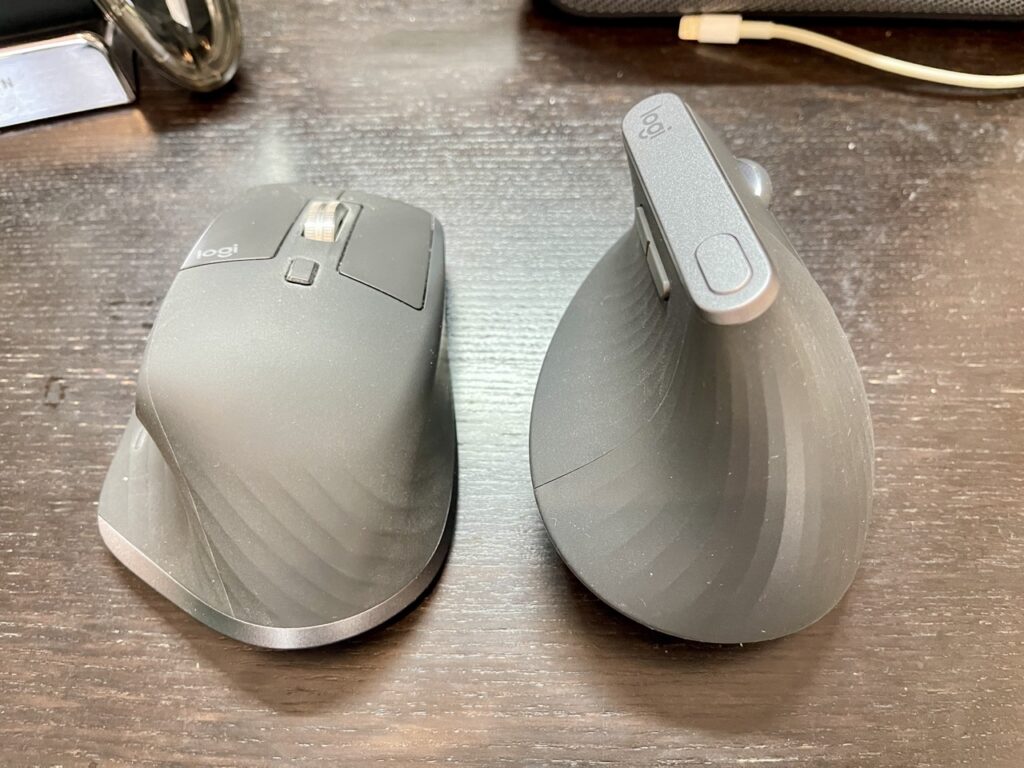
My first impressions of the MX Vertical
The biggest adjustment is the way you pick up and move the mouse. With a conventional mouse, the palm faces downwards and the forearm rotates accordingly. With the MX Vertical, the grip resembles holding someone’s hand. The change feels unusual initially, particularly when making small, precise movements.
The MX Vertical has a main scroll wheel, a thumb rest, side buttons and a cursor-speed switch. It offers the essentials for everyday navigation, although its control layout is much simpler than the MX Master 3S.
That simplicity is a trade-off. I lose the dedicated horizontal thumb wheel and the more elaborate MagSpeed scrolling system. In return, I gain an alternative hand position that lets me change how I use my arm during the working day.
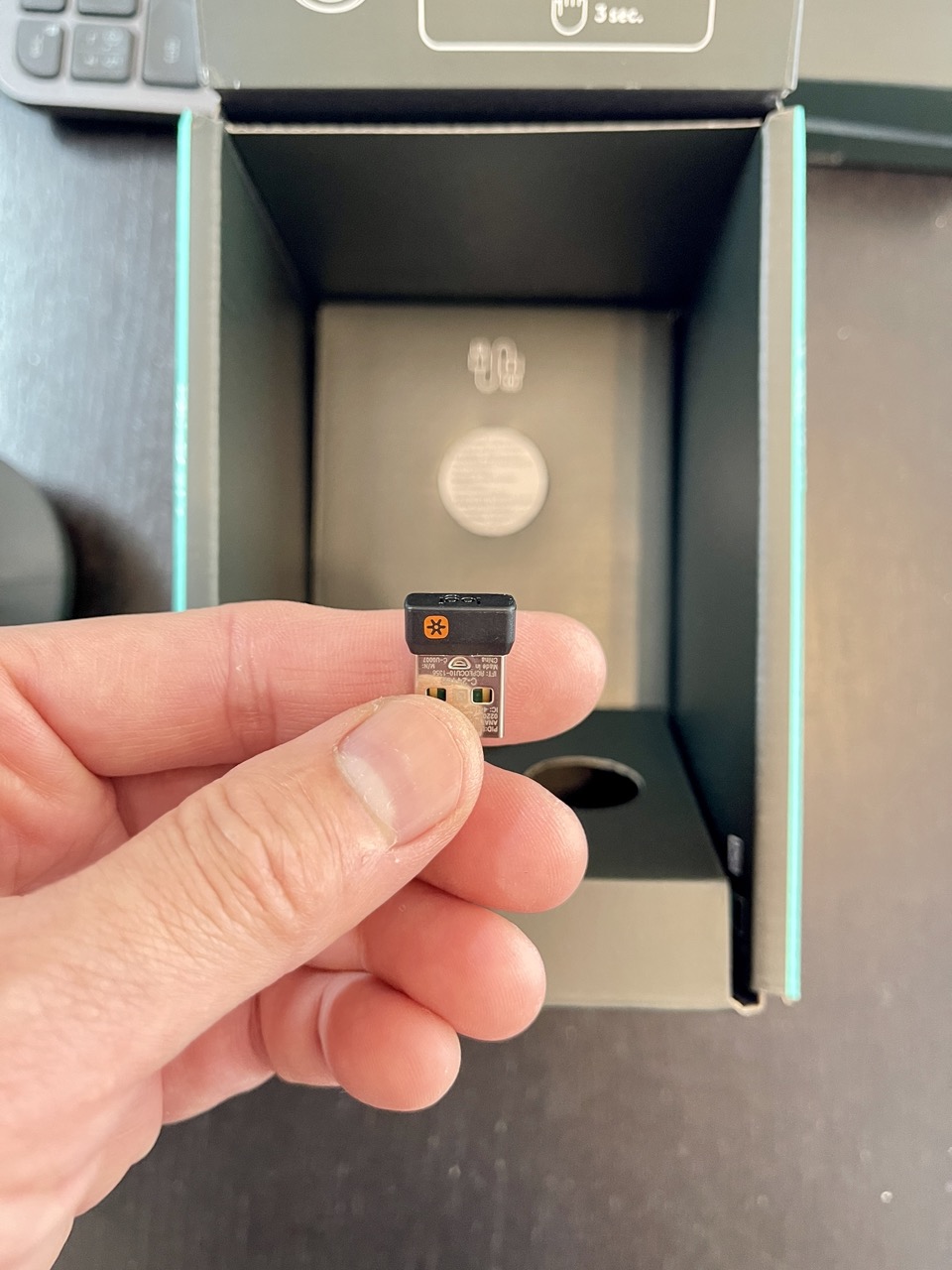
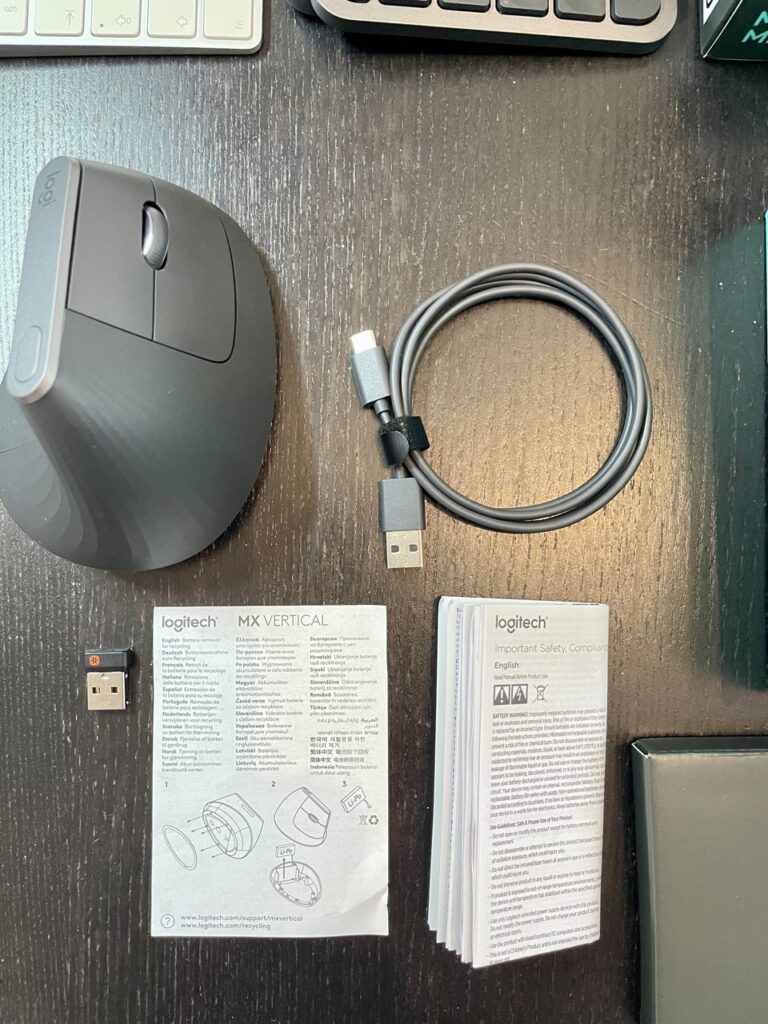
The mouse supports Bluetooth and a Logitech Unifying receiver. It can also connect through its charging cable while plugged in. The rechargeable battery is rated for up to four months, and Logitech says a one-minute charge can provide around three hours of use.
I use Bluetooth with my Macs, so the receiver remains an option rather than a necessity.
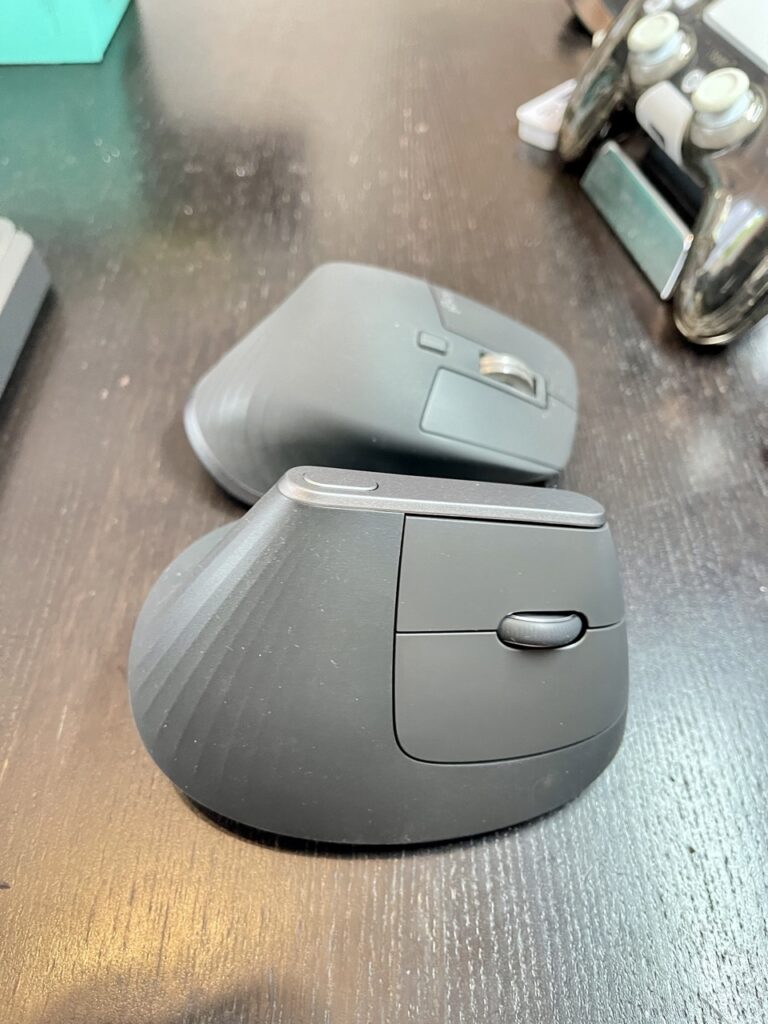
Has the MX Vertical helped my tennis elbow?
This is the main reason I bought it, and the answer from my own experience is that changing to a vertical mouse has been worthwhile.
My tennis elbow symptoms developed during a period when I was using my smartphone heavily with my right hand. I cut back on that habit and started looking more closely at the repetitive movements I was making throughout the day. The MX Vertical gave me another way to work at my desk without keeping my hand in precisely the same position as it would be on the MX Master 3S.
I wouldn’t claim that a vertical mouse cures tennis elbow. The term generally refers to pain associated with the tendons around the outside of the elbow, and its causes and appropriate treatment vary. The research on vertical mice supports changes in wrist posture and some muscle activity measurements; it doesn’t establish that buying one will treat every case of elbow pain.
For me, the value is having an alternative that I can use comfortably. I can change mice and vary my hand position rather than relying on one grip for the entire working day.
If you’re experiencing persistent elbow or wrist pain, it’s sensible to seek advice from a qualified healthcare professional. A mouse is one part of a wider approach that can include workload adjustments, breaks, workstation changes and appropriate exercises or treatment.
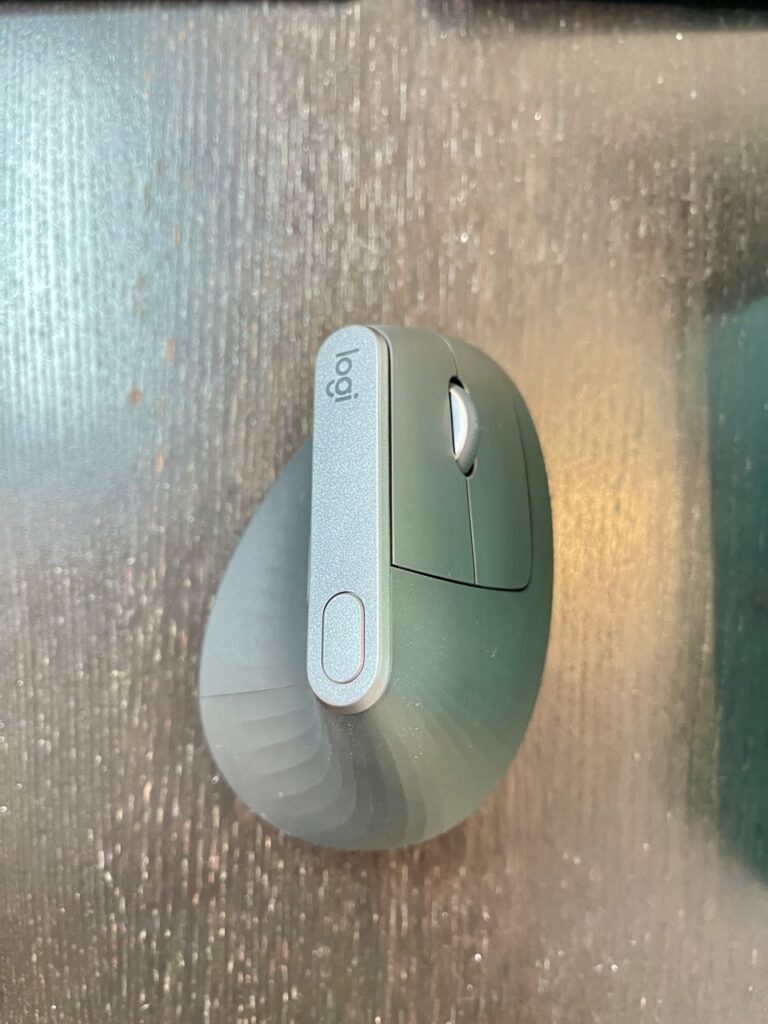
What I miss when switching from the MX Master 3S
The MX Vertical is a useful specialist tool, but it doesn’t replace every feature I value in the MX Master 3S. The main scroll wheel on the MX Vertical is straightforward and precise. It doesn’t provide the same combination of ratcheted scrolling and fast free-spinning movement that makes the MX Master so enjoyable for long documents and web pages.
I also miss the dedicated thumb wheel. When working with wide spreadsheets or applications that benefit from horizontal navigation, the MX Master 3S is much more convenient. The MX Vertical’s clicks are also noticeably more conventional and audible. If you prefer quiet buttons, the Lift is worth considering.
The vertical mouse requires a little patience as well. Small movements can feel less familiar until you adapt to the grip, and I wouldn’t choose it as my only mouse without trying it first. Those limitations are why I continue to use both devices.
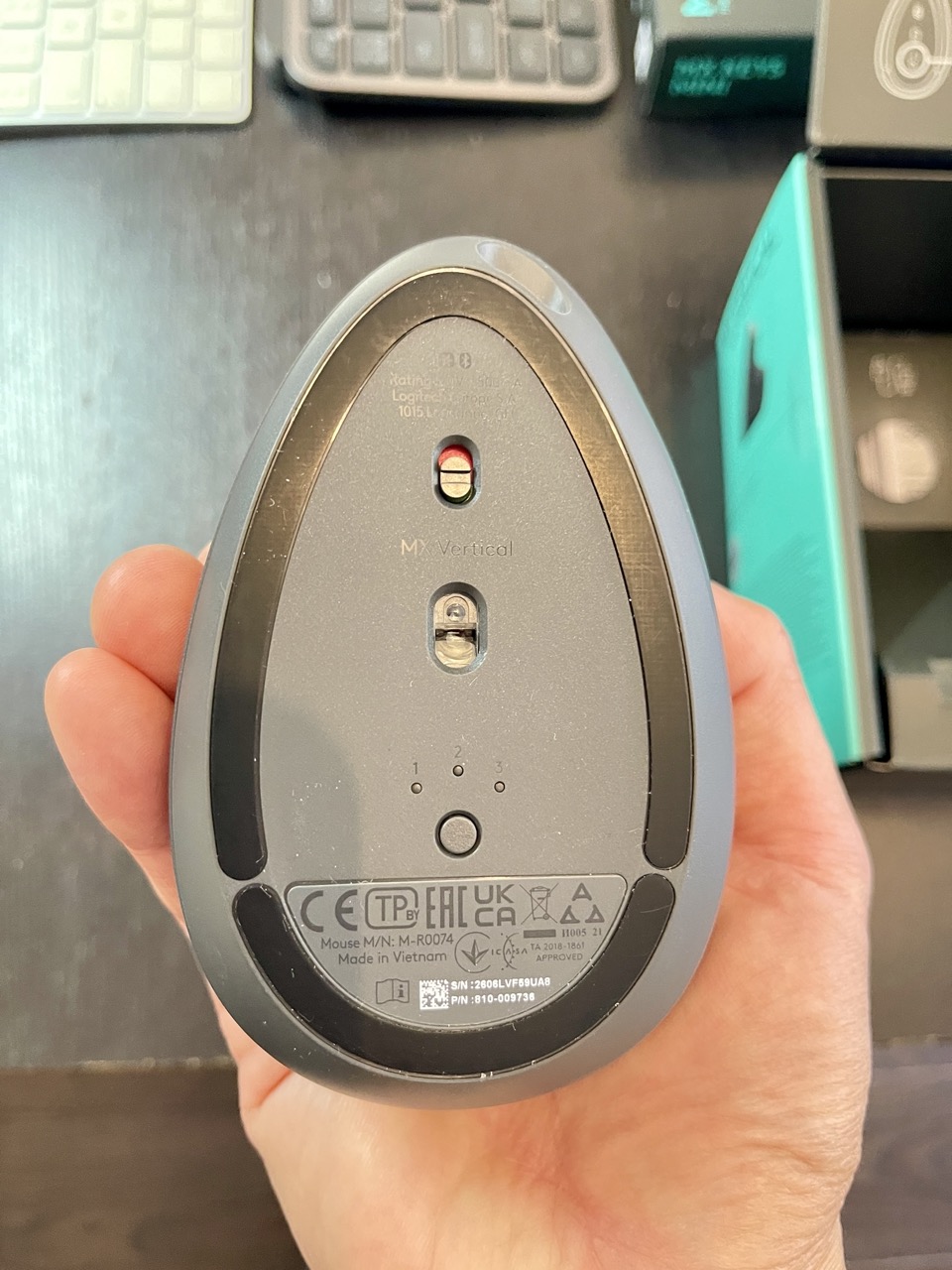
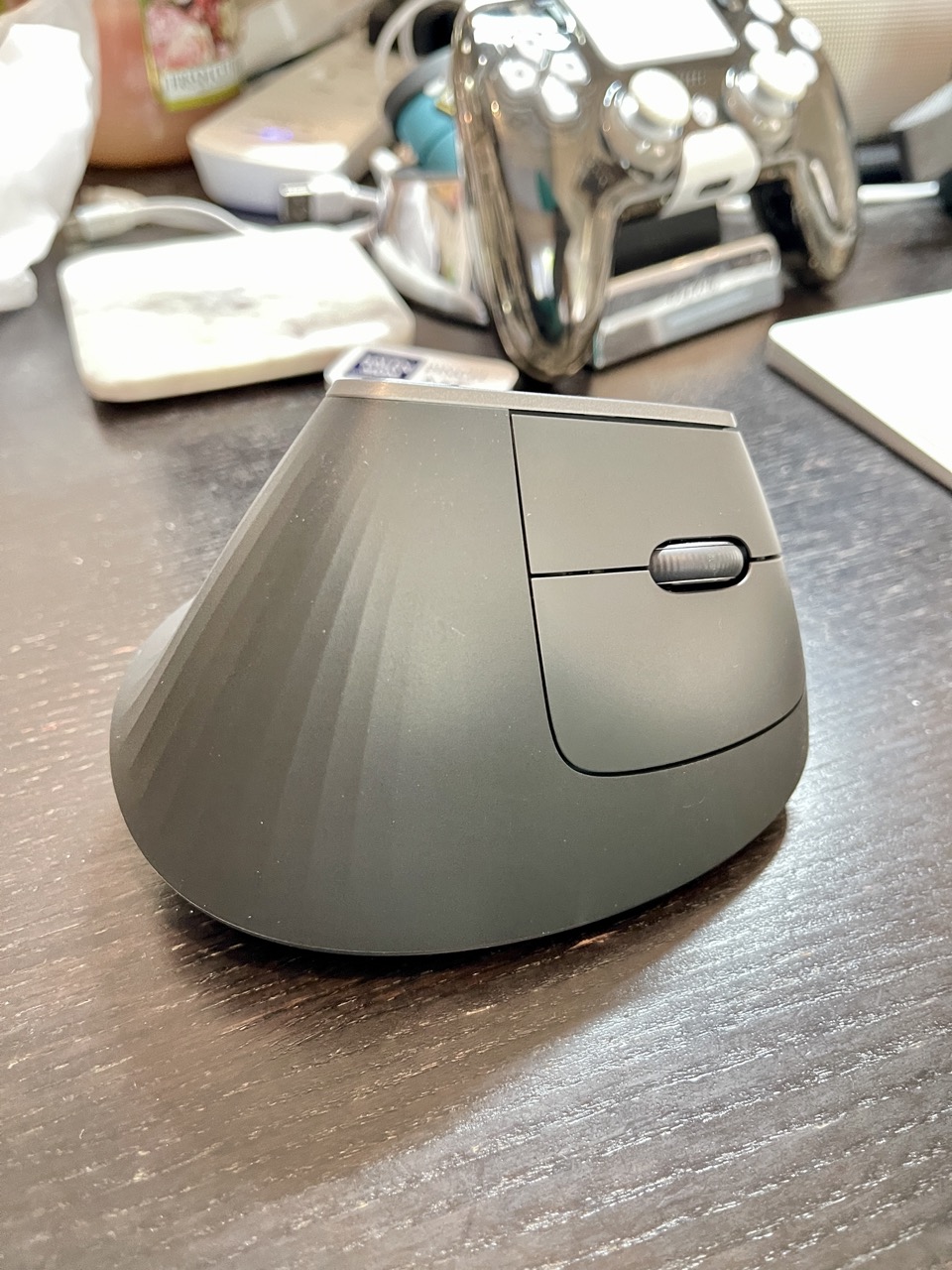
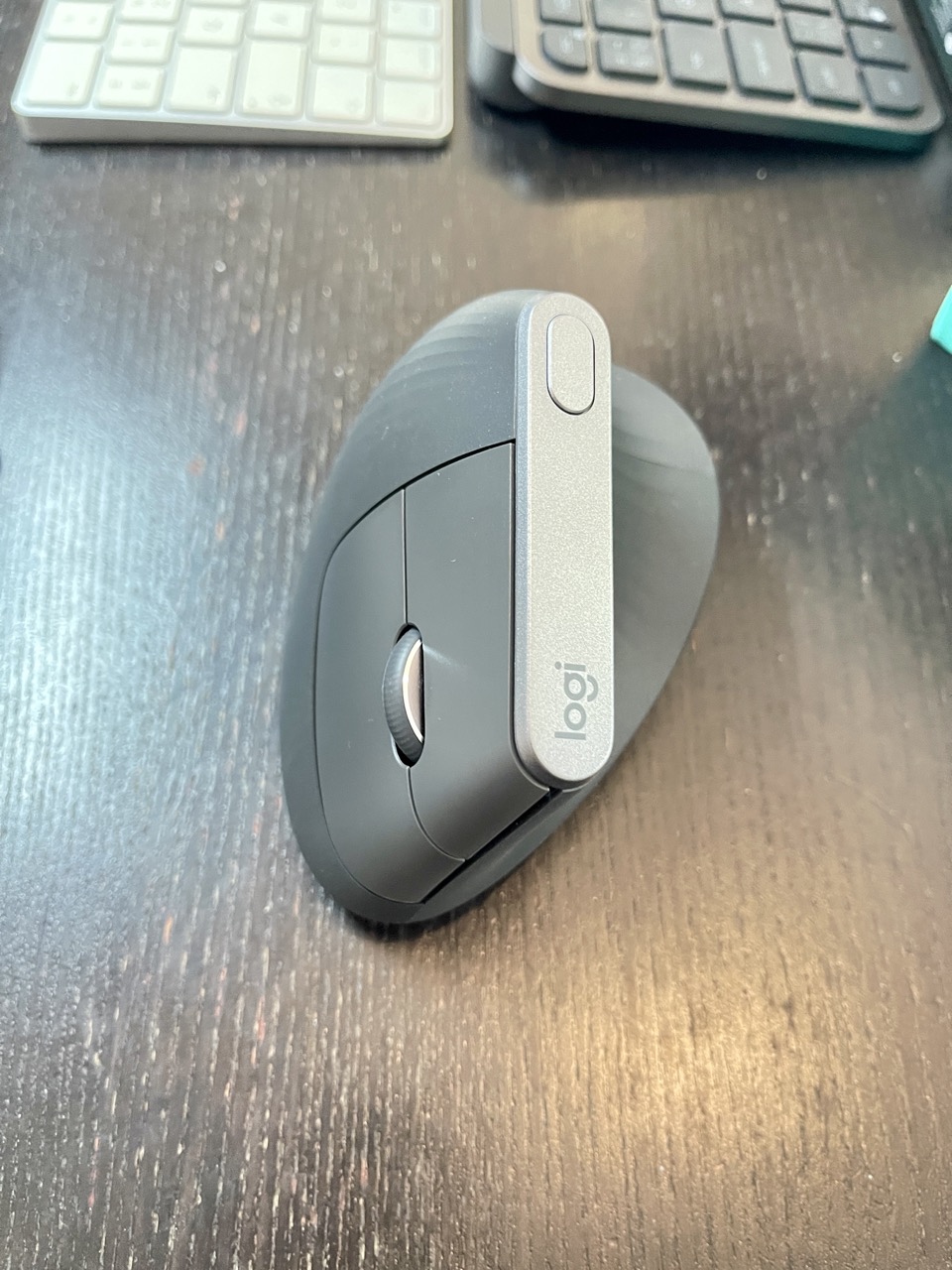
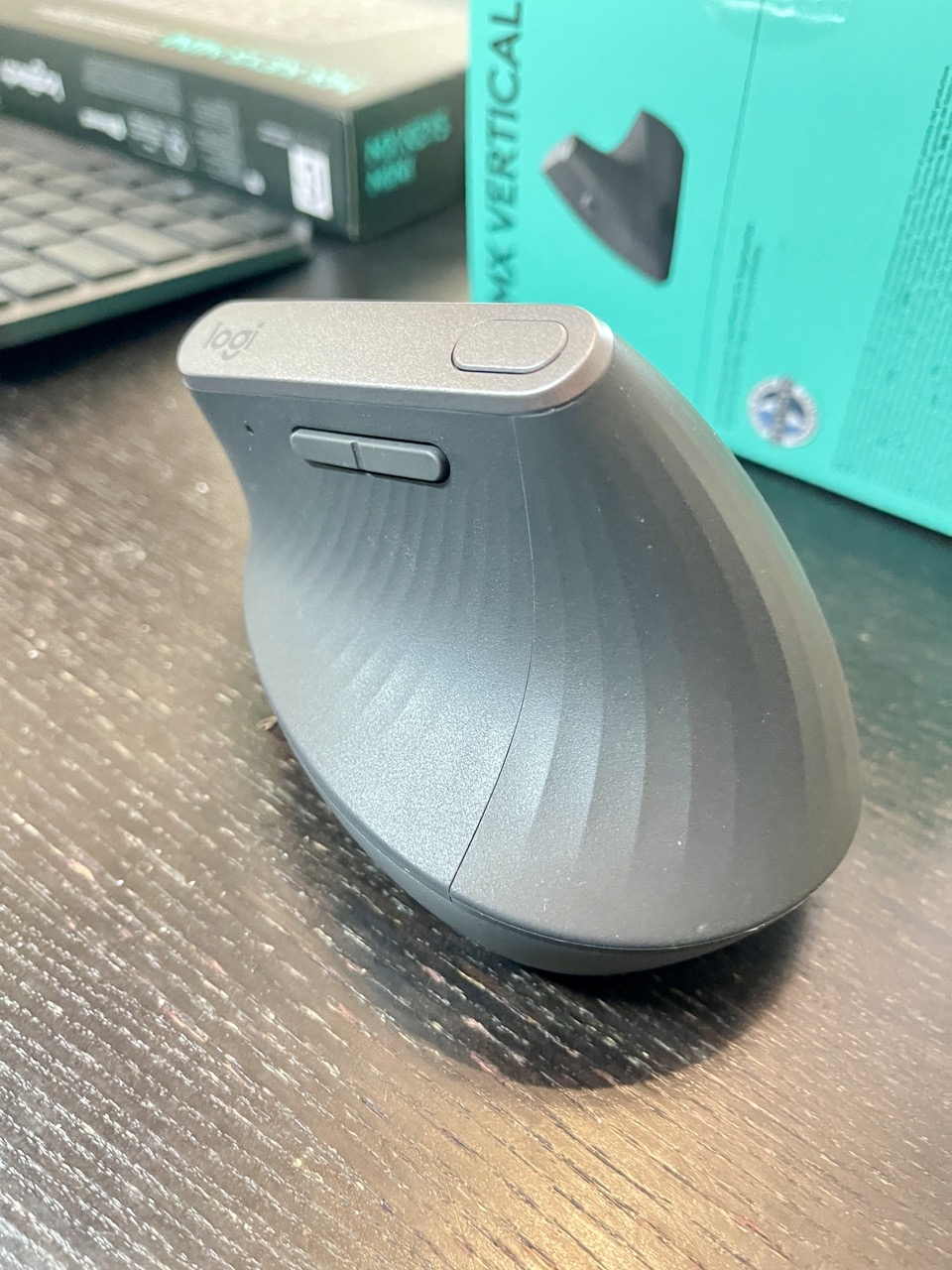
Search Logitech MX Vertical on Amazon
Living With Both: Why I Haven’t Chosen Just One
I work across two desktop computers, both running macOS. Having two mice gives me the freedom to use the device that suits the task and how my arm feels at the time.
The MX Master 3S remains my first choice for productivity-heavy work. Its scrolling, programmable controls and familiar shape make it an excellent everyday tool. The MX Vertical gives me a different grip when I want to change my hand position.
I don’t think of the two mice as competing for the same job any more. I use them as complementary tools. That approach also avoids expecting a single mouse to solve every ergonomic problem. Even a comfortable mouse can become tiring if I use it for hours without moving, take too few breaks or work with my arm in an awkward position. Switching devices is one small way of varying the movements I make throughout the day.
There is a cost to owning both, of course. You need the desk space, and the MX Vertical doesn’t offer the same productivity controls as the MX Master 3S. If your budget only stretches to one, it’s worth thinking about your priorities before buying.
For me, the combination has been worth it.
Logitech MX Master 3S vs MX Vertical: The Key Differences
| Feature | MX Master 3S | MX Vertical |
| Primary purpose | Productivity and extensive customisation | Alternative grip and wrist posture |
| Shape | Sculpted, conventional ergonomic mouse | 57-degree vertical handshake grip |
| Dimensions | 124.9 × 84.3 × 51 mm | 120 × 79 × 78.5 mm |
| Weight | Approximately 141 g | Approximately 125 g |
| Sensitivity | 200–8,000 DPI | 400–4,000 DPI |
| Main scroll wheel | MagSpeed with ratchet and free-spin modes | Conventional precision scroll wheel |
| Horizontal thumb wheel | Yes | No |
| Customisable controls | Seven buttons | Four customisable buttons, plus cursor-speed switch |
| Click noise | Quiet clicks | Conventional audible clicks |
| Battery | Rechargeable, USB-C | Rechargeable, USB-C |
| Advertised battery life | Up to 70 days | Up to four months |
| Wireless connectivity | Bluetooth and Logi Bolt, depending on version | Bluetooth and Unifying receiver |
| Software | Logi Options+ | Logitech Options/Options+, depending on support and configuration |
| Best suited to | Power users, office work and creative workflows | Users seeking a more upright hand position |
A note on battery life: Logitech’s published figure for the MX Master 3S is up to 70 days on a full charge, while the MX Vertical is rated for up to four months. Actual results depend on use and settings. Both have rechargeable batteries, so neither requires regular disposable battery replacements.
Sources: MX Master 3S specifications and MX Vertical specifications.
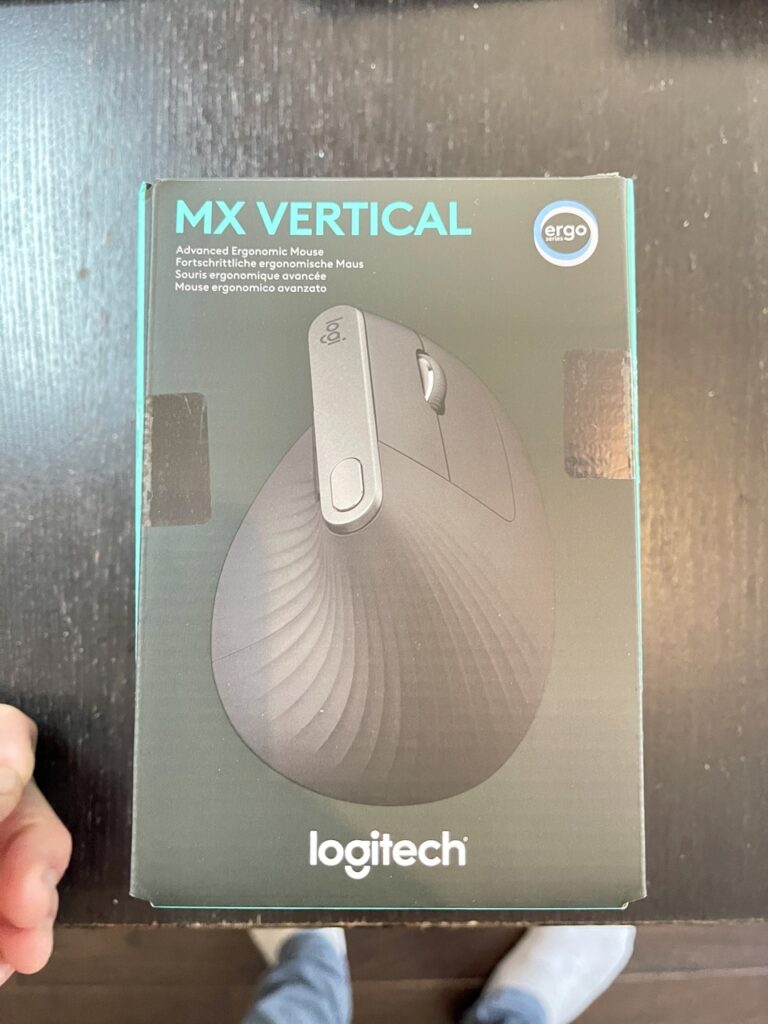
Price: Buy One or Stretch to Both?
Price was part of my decision. These are premium productivity mice, and I wanted to get good value from my purchase.
At the time I checked prices for this review, the standard retail prices I had recorded were around £90 for the MX Master 3S and £85 for the MX Vertical. Logitech’s offers brought them down to approximately £67.99 and £48.99 respectively. Prices change frequently, so check the current listing before buying.
I was particularly pleased to get the MX Vertical at a discount. I also considered the MX Master 4, listed at around £119 when I was comparing options. I couldn’t justify paying that much for the upgrade when the MX Master 3S was available for considerably less. Buying both the MX Master 3S and the MX Vertical cost me only a little more than I would have paid for one MX Master 4 at its listed price.
That made the decision easier. Rather than spending the extra money on a newer version of the same productivity mouse, I could keep the features I already loved and add a different ergonomic option.
Are cheaper vertical mice worth considering?
Before settling on the MX Vertical, I looked at more affordable alternatives, including the ProtoArc EM11 and EM11NL, Anker vertical mice and the TechNet vertical ergonomic mouse.
There are plenty of budget models worth investigating, particularly if you want to experiment with a vertical grip before spending more. I decided that I would rather buy from a manufacturer I already knew and trusted, with established software support and specifications that I could verify.
That was a personal purchasing decision, not a conclusion that cheaper mice are necessarily poor products. A budget vertical mouse may suit your hand and workload perfectly well. If you’re exploring alternatives, take a look at the video from Tech Ratings, which compares more affordable vertical mouse options:
Watch: Tech Ratings – Budget vertical mouse alternatives
Which Should You Buy?
Buy the Logitech MX Master 3S if…
- You spend much of your day working with documents, spreadsheets, browsers or creative applications.
- You value fast scrolling and precise navigation.
- You want a dedicated horizontal thumb wheel.
- You enjoy customising mouse controls for different applications.
- You prefer quiet clicks and a conventional ergonomic shape.
- Your current mouse feels comfortable and you want to improve productivity.
The MX Master 3S is the better all-rounder for my workflow. Its combination of controls, scrolling and customisation makes it easy to recommend to people who work at a computer for long periods.
Buy the Logitech MX Vertical if…
- You want to try a more upright, handshake-style grip.
- A conventional mouse position feels uncomfortable.
- You are prepared to spend some time adapting to a different way of moving the mouse.
- You prefer a simpler control layout.
- You want a rechargeable vertical mouse from an established manufacturer.
The MX Vertical is particularly appealing if changing your hand position is a priority. It isn’t a guaranteed treatment for RSI or tennis elbow, but it provides a different way to operate a computer mouse and may suit people who find a conventional grip uncomfortable.
Buy both if…
- You work for long hours at a computer.
- You value the MX Master 3S’s productivity features.
- You want the option of changing your grip during the day.
- You have the desk space and budget for two mice.
- You work across multiple computers and appreciate having different tools available.
This is the option that makes the most sense for me. I don’t have to give up the MX Master 3S’s excellent controls to experiment with a more upright grip. I can use each mouse for what it does best.
Two Logitech Mice, Two Different Jobs
The Logitech MX Master 3S remains one of my favourite productivity accessories. Its quiet clicks, excellent MagSpeed scroll wheel, horizontal thumb wheel and customisable controls make it a pleasure to use. My previous MX Master lasted long enough to show just how much daily use it could withstand, even if the deterioration of its rubberised thumb rest was disappointing.
The MX Vertical has earned its place on my desk for a different reason. My experience with tennis elbow (although unrelated to mouse use) made me look beyond the familiar shape of a conventional mouse, and the vertical design gives me an alternative hand position that I can use throughout the working day.
I still prefer the MX Master 3S for many tasks. The MX Vertical has fewer productivity features, and it takes time to become comfortable with its grip. I wouldn’t swap one for the other without considering what I need from a mouse.
For someone buying only one, my recommendation is straightforward: choose the MX Master 3S for its productivity features and choose the MX Vertical if its more upright grip better suits your needs.
For me, buying both has been the right decision. I get the productivity features I value, and I have another option when I want to change how I use my hand and arm. Given the amount of time I spend working at a computer, that flexibility is worth the extra expense.
One final reminder: no mouse can compensate for a poorly arranged workstation or replace sensible breaks and appropriate care when pain develops. The right mouse should make your working day more comfortable and productive, and both of these Logitech devices have a place in my setup.
Have you used a vertical mouse to manage wrist, forearm or elbow discomfort? Or have you found a way to repair the worn rubber thumb rest on an older MX Master? Share your experience in the comments.