How Many Monitors Can Apple M6 Macs Support? M6 Mac mini, iMac & MacBook Pro Display Guide
If you are planning a multi-monitor workstation around Apple’s new M6 silicon, the answer is not a single number. It depends entirely on which M6-based Mac you choose. Apple has officially confirmed that the M6 Mac mini supports up to three external displays, the 24-inch iMac with M6 supports up to two external 6K displays alongside its built-in screen, and the 14-inch MacBook Pro with M6 supports up to two external displays alongside its built-in display. This guide breaks down the exact configurations, resolution limits, and practical implications for your setup.
Quick Answer: M6 Display Support at a Glance
| Mac Model | Chip | Max External Displays | Total Displays (with built-in) |
| Mac mini (M6) | M6 | 3 | 3 (no built-in screen) |
| iMac 24-inch (M6) | M6 | 2 | 3 (built-in + 2 external) |
| 14-inch MacBook Pro (M6) | M6 | 2 | 3 (built-in + 2 external) |
| M6 Pro / M6 Max | Not yet announced | TBD | TBD |
Note: At the time of writing, Apple has released M6 variants for the Mac mini, the 24-inch iMac, and the entry-level 14-inch MacBook Pro. Higher-tier M6 Pro and M6 Max chips have not yet debuted on any Mac system. The faster Mac mini is based on M5 Pro chip.
Mac mini with M6: The Compact Three-Monitor Hub
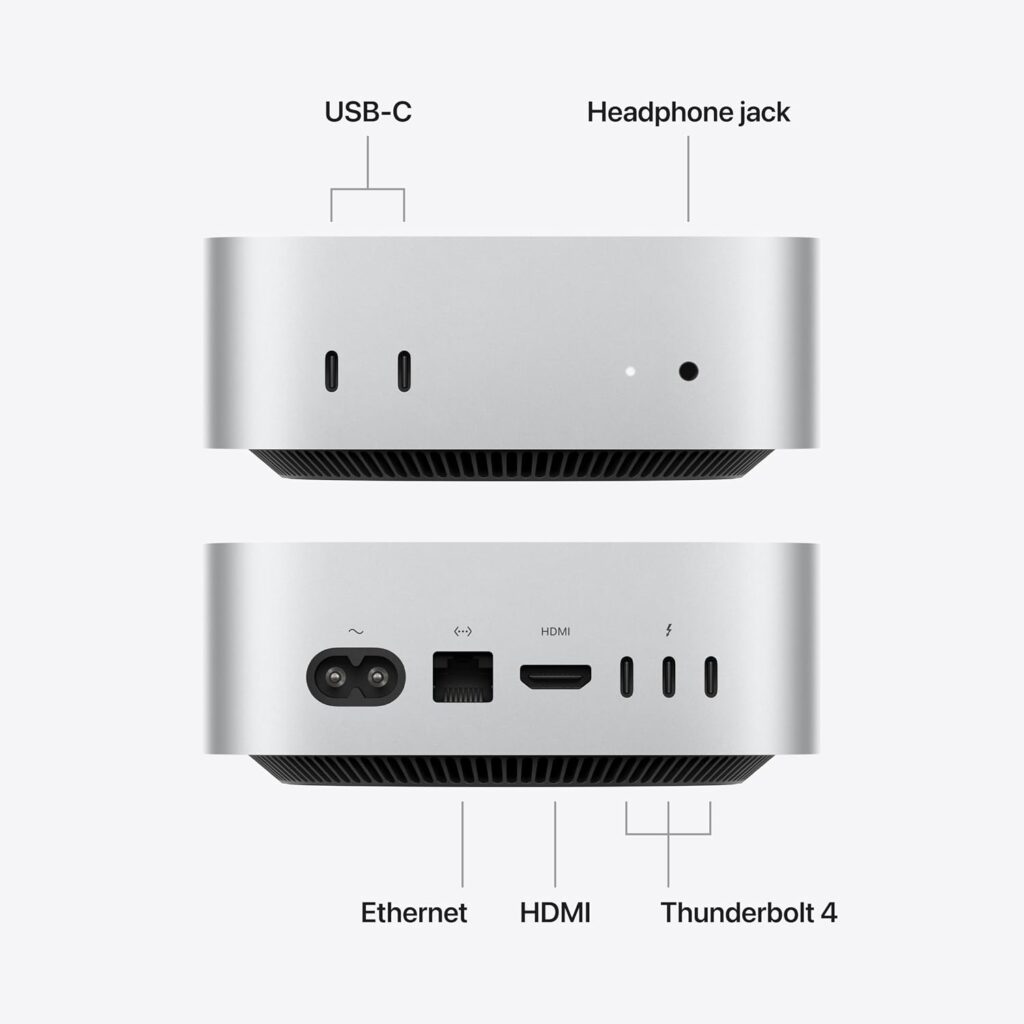
The M6 Mac mini is the standout for multi-display productivity in Apple’s current lineup. Unlike the base M1 and M2 Mac minis, which were limited to two displays, the M6 model officially supports three external displays simultaneously.
However, you cannot simply plug in any three monitors at any resolution. Apple specifies distinct configurations based on what you connect:
Three-Display Configuration Options
Option 1: Two High-Res + One 5K
- Two displays up to 6K (6144 x 3456) at 60Hz over Thunderbolt or HDMI
- One additional display up to 5K (5120 x 2880) at 60Hz over Thunderbolt
Option 2: Two High-Res over Thunderbolt + One 4K over HDMI
- Two displays up to 6K at 60Hz over Thunderbolt
- One display up to 4K (3840 x 2160) at 60Hz over HDMI
Dual and Single Display Flexibility
If you only need two screens, the M6 Mac mini offers more headroom per display:
- Two 6K displays at 60Hz over Thunderbolt or HDMI, or
- One 8K display at 60Hz plus a second 5K display at 60Hz
For a single monitor, the M6 Mac mini can drive an 8K panel at 60Hz, a 5K panel at 120Hz, or a 4K panel at 165Hz—making it a surprisingly capable hub for a single ultra-high-resolution workflow.
Important caveat: Daisy-chaining or using a hub can enable two displays over one Thunderbolt port, but it does not increase the maximum display count. The limit remains three external screens regardless of how you connect them.
iMac 24-inch with M6: Two External 6K Displays
The 24-inch iMac with the new M6 chip, available from 6 November, is Apple’s all-in-one desktop and brings a straightforward multi-display promise: up to two external 6K displays in addition to its own 24-inch 4.5K Retina screen.
That gives you a maximum total workspace of three displays: the built-in 4.5K panel (4480 x 2520) plus two external monitors at up to 6K resolution. For creative professionals, families, and small business owners who want a large canvas without a separate desktop tower, this is a clean and capable configuration.
What You Need to Know
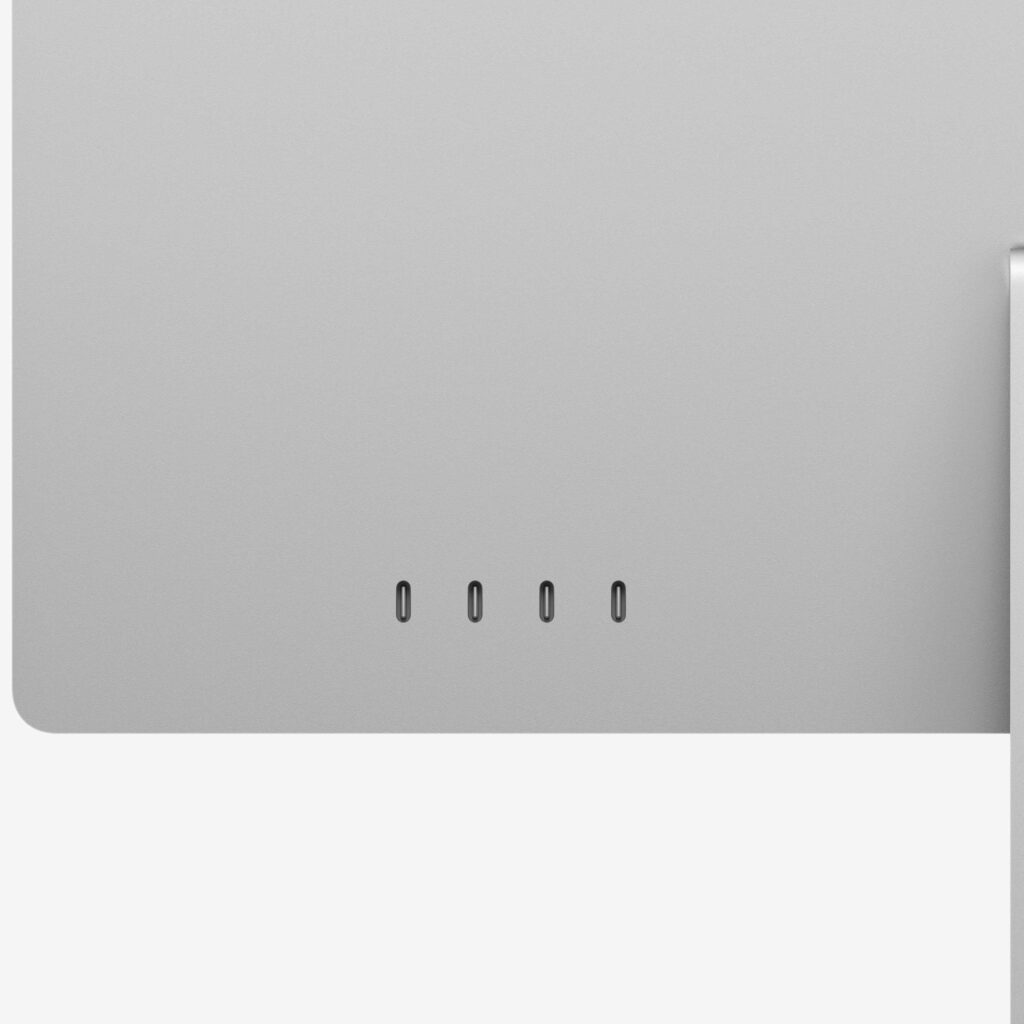
- Ports: The iMac M6 features up to four Thunderbolt 4 ports, giving you ample connectivity for dual 6K monitors plus peripherals.
- Resolution: Apple’s product page confirms support for up to two external 6K displays, matching the high-resolution credentials of the built-in Retina screen.
- Nano-texture option: If glare is a concern in your workspace, the iMac M6 is available with a nano-texture glass option that reduces reflections while maintaining image quality—useful in bright rooms or near windows.
- No daisy-chain bonus: As with all Apple Silicon Macs, daisy-chaining displays over a single Thunderbolt port does not increase the maximum display count. Two external displays is the ceiling.
iMac M6 vs. iMac M4: What Changed?
The previous M4 iMac also supported up to two external displays, with configurations including one 6K external display or two 6K displays depending on resolution targets. The M6 iMac maintains that two-external-display ceiling while benefiting from the M6 chip’s faster CPU, GPU with Neural Accelerators, and the first-ever Dual 16-core Neural Engine—making it better suited to AI-assisted workflows and multitasking across those three screens.
Bottom line: If you want an all-in-one with a built-in 4.5K display and the ability to add two 6K monitors, the iMac M6 delivers exactly that. If you need three external displays, the Mac mini M6 remains the only standard M6 desktop that can do it.
14-inch MacBook Pro with M6: Two External Displays
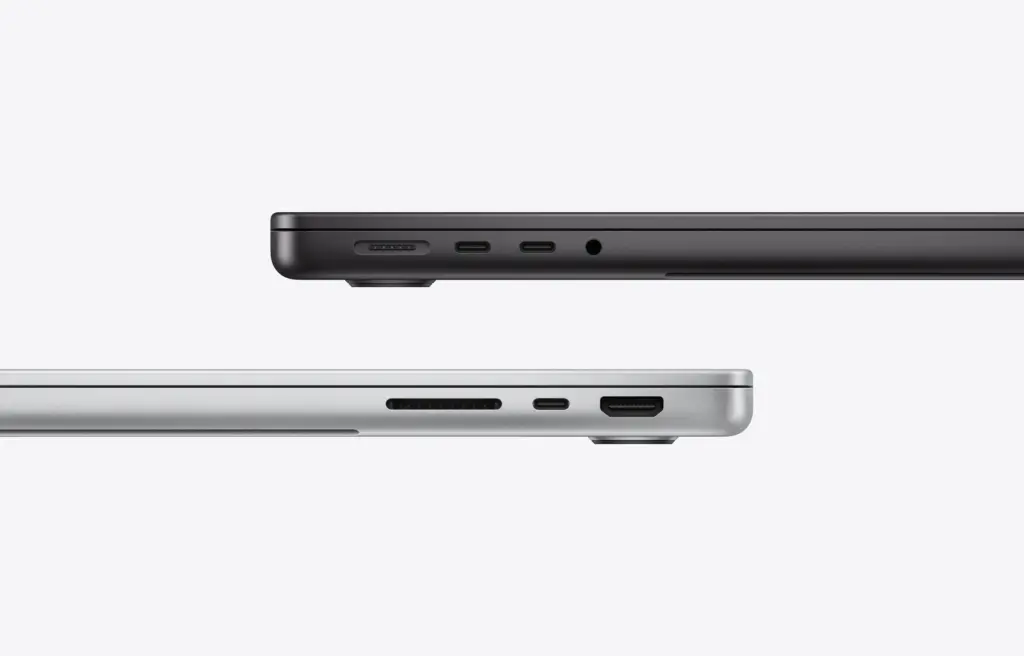
The newly announced 14-inch MacBook Pro with the standard M6 chip is more modest in its multi-display ambitions. Apple’s official specifications confirm support for up to two external displays, in addition to the built-in Liquid Retina XDR screen.
This means your maximum total workspace with a MacBook Pro M6 is three screens: the laptop’s own display plus two monitors.
The external displays can be driven at up to 4K resolution at 165Hz each, according to reports from Apple’s announcement. This represents a slight refresh-rate bump over the M5 generation (which topped out at 144Hz for dual 4K), but the fundamental display count remains the same.
For users coming from an M3 or M4 base chip MacBook Pro, this is consistent: Apple’s standard-tier laptop chips have historically supported two external displays, while the Pro and Max tiers unlock four or more.
What About M6 Pro and M6 Max?
As of late October 2026, Apple has not announced any Macs with M6 Pro or M6 Max chips. The M6 Pro and M6 Max are expected to arrive in higher-end MacBook Pro configurations and possibly the Mac Studio in the coming months, but no official display specifications exist yet.
Based on Apple’s historical pattern:
- M3 Pro / M4 Pro: Up to 2 external displays (plus built-in on laptops)
- M3 Max / M4 Max: Up to 4 external displays (plus built-in on laptops)
It is reasonable to expect M6 Pro and M6 Max to follow similar or slightly improved tiers, but do not purchase based on speculation. Wait for Apple’s official specifications for those chips before committing to a high-display-count workstation.
Practical Buying Advice
Choose the M6 Mac mini if:
- You need three external monitors without a built-in screen consuming desk space
- Your work involves a mix of 6K and 5K panels, or a single 8K display
- You want the most display flexibility from a standard (non-Pro/Max) M6 chip
Choose the iMac 24-inch M6 if:
- You want an all-in-one with a brilliant 4.5K built-in screen and the ability to add two 6K monitors
- You value a clutter-free desk with a colour-matched keyboard and mouse
- Your workflow benefits from the M6 chip’s AI performance and a nano-texture display option
Choose the 14-inch MacBook Pro M6 if:
- You need portability first and multi-display support second
- Two external 4K monitors at high refresh rates plus the laptop screen is sufficient
- You value the XDR display, longer battery life, and the MacBook Pro chassis
Wait for M6 Pro/Max if:
- You need four or more external displays
- Your workflow demands three 6K screens simultaneously
- You are building a fixed workstation around a future Mac Studio or high-end MacBook Pro
Frequently Asked Questions
Can I connect three monitors to a MacBook Pro M6?
No. The 14-inch MacBook Pro with standard M6 chip supports a maximum of two external displays, for a total of three screens including the built-in display.
Can I connect three external monitors to an iMac M6?
No. The iMac M6 supports up to two external 6K displays in addition to its built-in 24-inch 4.5K screen, for a total of three displays. If you need three external monitors, the Mac mini M6 is the model to choose.
Does closing the MacBook Pro lid let me connect more external monitors?
No. Unlike some older Intel Macs, Apple Silicon display limits are fixed by the chip’s display controller. Closing the lid does not free up additional external display capacity on M-series Macs.
Can I use DisplayLink adapters to add more monitors to an M6 Mac?
DisplayLink (or similar software-based display technologies) can sometimes work around hardware limits, but performance—especially for video playback, gaming, or color-critical work—may be compromised. Apple does not officially support or guarantee DisplayLink behavior, and the maximum native configurations listed above remain the only officially validated setups.
Is the M6 Mac mini’s three-display support a first for the base Mac mini?
Yes. The M1 and M2 Mac mini models supported a maximum of two external displays. The M4 Mac mini raised the bar to three, and the M6 Mac mini maintains that three-display ceiling with updated resolution and refresh-rate options.
When is the iMac M6 available?
The iMac with M6 chip is available from 6 November, starting at £1,499.
Three is the Magic Number (internal or external)
For M6-based Macs currently on the market, the display story is clear: three is the magic number for the Mac mini, while the iMac and MacBook Pro both top out at two external monitors (three total screens including their built-in displays). The M6 Mac mini remains the choice for users who prioritise pure external screen real estate without jumping to Pro or Max silicon. The iMac M6 is the ideal all-in-one for those who want a stunning built-in 4.5K canvas plus dual 6K externals, and the MacBook Pro M6 is a portable workstation that can drive a dual-monitor desk setup when you are parked—but it will not replace a dedicated multi-display hub for serious three-or-four-monitor workflows.
As always, check Apple’s official tech specs for your exact configuration before purchasing monitors, and remember that cable quality (especially for 6K and 8K over Thunderbolt) matters just as much as the display count itself.