Creative Student’s MacBook Neo Toolkit: Storage, Sound & Beyond
From Student to Creator: 6 Accessories That Turn Your MacBook Neo into a Creative Powerhouse. Your MacBook Neo Is More Creative Than You Think
When Apple announced the MacBook Neo with the A18 Pro chip, the same silicon found in the iPhone 16 Pro, the creative community raised an eyebrow. A phone chip in a laptop? For photo editing, music production, and video work?
Here’s what the skeptics missed: the A18 Pro is surprisingly capable. Its 5-core GPU handles hardware-accelerated ray tracing. Its 16-core Neural Engine (38 TOPS) powers Apple Intelligence features like real-time photo enhancement and subject isolation. And paired with macOS, it runs professional creative app; Affinity Photo (or Canva’s Affinity), Logic Pro, DaVinci Resolve with genuine fluency.
But here’s the truth that separates a hobbyist from a serious student creator: your Neo’s raw power is only half the story.

Creative work demands three things that Apple’s budget laptop doesn’t include out of the box:
- Storage for massive project files, raw footage, and backup archives
- Sound that lets you hear your work accurately and block out the world
- Capture tools that turn your laptop into a professional recording studio
We cover those three essentials, external storage, noise-cancelling headphones, and a proper microphone—plus three more accessories that creative students often overlook. None will break your budget. All will transform your Neo from a general-purpose laptop into a genuine creative workstation.
The Core Three: Storage, Sound and Capture
The MacBook Neo’s A18 Pro chip and 5-core GPU are surprisingly capable for light creative work, photo editing, music production, and even 1080p video editing with discipline. But creative projects demand two things that the Neo’s base configuration lacks: storage space and audio fidelity.
1. External SSD Hard Drive or Network Attached Storage (NAS) because 256GB disappears very quickly
The MacBook Neo starts with just 256GB of internal storage. A single semester of video projects, a Lightroom catalogue of RAW photos, or a Logic Pro session with sampled instruments can eat that entire drive. Worse, if your Neo is lost, stolen, or suffers a hardware failure, your creative portfolio disappears with it.
The solution: External storage, either a portable SSD for active projects or a NAS for long-term archiving and backup.
Option A: Portable External SSD (For Active Projects)
A portable SSD connects via USB-C and provides fast, reliable storage for your current creative work. The Neo’s fast USB-C port supports up to 10Gb/s, which is plenty for editing 4K video (using proxy workflows) or working with large photo libraries.
What to look for:
- USB 3.2 Gen 2 (10Gb/s) to match the Neo’s fast port
- Durability: Look for rugged, drop-resistant, and water-resistant models (student life is unpredictable)
- Capacity: 1TB is the sweet spot for most students; 2TB if you shoot a lot of video
- Bus-powered: Runs off the Neo’s USB-C port, no external power needed

Top recommendations for students:
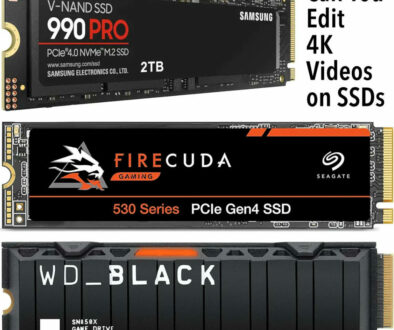
- Samsung T7 Shield (1TB/2TB): Rugged, fast, reliable. The industry standard for a reason.
- SanDisk Creator Pro Portable SSD (1TB/2TB): Similar specs, super fast
- Crucial X9 (1TB/2TB): Excellent value, Mac-friendly.
- Lexar ES3 External SSD 1TB USB3.2 Gen2 Portable SSD

How to use it:
- Store your active creative projects directly on the external SSD
- Set your creative apps (Lightroom, Final Cut, Logic) to use the external SSD as their default scratch/library location
- Keep the Neo’s internal drive for apps, system files, and documents
Option B: Network Attached Storage (NAS) (For Teams or Heavy Archiving)
A NAS is a hard drive (or multiple drives) that connects to your Wi-Fi network rather than directly to your Neo. It’s overkill for most students, but for specific scenarios it’s transformative:
- Collaborative projects: Multiple students can access, edit, and save files to the same NAS
- Automatic backups: Set up Time Machine to back up your Neo to the NAS wirelessly, every hour
- Media server: Stream your film projects, music library, or lecture recordings to any device on your network
- Long-term archiving: Keep every project from your entire degree in one place

What to look for (entry-level):
- 2-bay NAS (Synology or QNAP are student-friendly)
- Two hard drives configured in RAID 1 (mirrored, so if one drive fails, your data survives)
- 4TB to 8TB total capacity (2x2TB or 2x4TB drives)
Is a NAS worth it for a student? Only if you: share projects with a team (film club, design collective), have multiple computers to back up (Neo + desktop + partner’s laptop), or simply want the most robust backup solution possible. Otherwise, a portable SSD is simpler and cheaper.
Why this matters for creators: Losing your creative portfolio to a stolen laptop or a hard drive crash is devastating. An external SSD (for active work) plus a second backup (cloud or NAS) is non-negotiable for any student serious about their creative future.
2. Noise-Cancelling Headphones
You cannot do creative work in a noisy environment. Libraries aren’t always quiet. Dormmates aren’t always considerate. Coffee shops are ambient. And open-back headphones (great for mixing) let all that noise in.
For creative students, noise-cancelling headphones serve two purposes:
- Focus: Block out distractions so you can edit, mix, or design for hours
- Monitoring: Hear your work accurately (though consumer noise-cancelling headphones are not neutral enough for professional mixing)

The reality check: True professional studio monitors (headphones for mixing and mastering) don’t have noise cancellation. Noise cancellation alters frequency response. If you’re a music production student, you’ll eventually need two pairs: one for blocking noise while composing (noise-cancelling) and one for critical listening (studio monitors). But on a student budget, good noise-cancelling headphones are a fine starting point.

What to Look For (For Creative Work)
| Feature | Why It Matters for Creators |
| Wired + wireless modes | Bluetooth has latency (delay), which is problematic for video editing or music production. A wired connection (via 3.5mm or USB-C) eliminates lag. |
| Neutral-ish sound signature | Avoid headphones with exaggerated bass or treble. You want to hear your work accurately, not “pleasantly.” |
| Comfort for long sessions | Creative work happens in hours-long blocks. Lightweight design, plush earpads, and low clamping force matter. |
| USB-C charging | One cable for Neo, phone, and headphones simplifies your bag. |
| Microphone (for calls) | You’ll still need to attend remote classes, client calls, or critique sessions. |

Top Recommendations for Creative Students
Budget-Friendly (Under £80):
- Anker Soundcore Q20/Q30: Excellent noise cancellation for the price. Sound signature is consumer-friendly (slightly boosted bass), but fine for editing and general creative work. Wired mode available.
Mid-Range (Under £150):
- Sony WH-CH720N: Lighter and more comfortable than Sony’s premium models. Good noise cancellation. Neutral-ish sound. Wired mode supports passive listening (no battery needed).
Apple Ecosystem (Best Integration):
- AirPods Pro 3: Seamless switching between Neo and iPhone. Excellent noise cancellation. Transparency mode is useful for being aware of your surroundings. Spatial Audio is genuinely useful for video editing. The catch: Bluetooth only (no wired mode), so there is slight latency for video/music work.
For Music Production Students (Save Up):
- Beyerdynamic DT 700 Pro X (wired, no noise cancellation): These are studio monitors, not consumer headphones. Neutral sound, incredible comfort, built like a tank. No noise cancellation, but excellent passive isolation. These will serve you through your degree and into your professional career.

Why this matters for creators: You cannot edit audio you cannot hear. You cannot design when you’re distracted. Good headphones are not a luxury for creative students—they are a tool as essential as your laptop.
3. Professional Microphone (Voiceovers, Podcasts and Music
The MacBook Neo’s built-in dual-mic array is fine for FaceTime and Zoom lectures. But for voiceovers, podcasting, remote music collaboration, or any creative audio work, the built-in mics are inadequate. They pick up keyboard noise, room echo, and lack the warmth and clarity of a proper microphone.
The solution: An external USB or USB-C microphone designed for voice and instrument recording.
What to Look For (For Student Creators)
| Feature | Why It Matters |
| USB-C connection | Direct plug-and-play with the Neo’s USB-C ports. No audio interface required (saves money and desk space). |
| Cardioid polar pattern | Picks up sound from the front (your voice) while rejecting sound from the sides and rear (keyboard clicks, dorm noise). |
| Built-in headphone jack (zero-latency monitoring) | Lets you hear your own voice through the headphones in real-time, without the delay caused by computer processing. Essential for natural-sounding voice work. |
| Gain control (physical knob) | Adjusts microphone sensitivity. Avoids having to dig into software settings mid-recording. |
| Mute button | Useful for online classes and quick mic checks. |
| Stand or boom arm compatibility | A desktop stand is fine for casual use, but a boom arm gets the mic off your desk and reduces vibration noise. |

Top Recommendations for Student Creators
Entry-Level (Under £50):
- Fifine K669B: Surprisingly good sound for the price. USB-A (use a cheap adapter or hub). Cardioid pattern, decent build quality. The go-to budget recommendation for student podcasters.
- Samson Meteor Mic: Retro design, USB, built-in stand, decent sound. Very portable.

Mid-Range (Under £100):
- Blue Yeti (or Yeti Nano): The classic student podcasting mic. Multiple polar patterns (cardioid, omnidirectional, bidirectional, stereo). USB, built-in headphone jack, gain control, mute button. Heavy, but excellent for the price. Available in colours that match your Neo.
- Rode NT-USB Mini: Smaller, lighter, and better sounding than the Yeti for voice. Excellent build quality. Cardioid only (which is fine for most students). Highly recommended.

For Aspiring Musicians (Under £150):
- Audio-Technica AT2020USB+: This is a true studio condenser microphone with USB convenience. Much clearer and more detailed than gaming or podcasting mics. Great for vocals, acoustic instruments, and voiceover work. Requires a boom arm or sturdy stand (not included).

For Video Students (Shotgun Mic):
- Rode VideoMic GO II: A compact shotgun microphone that mounts on a camera or sits on a desk. Super-cardioid pattern (very narrow focus, rejects side noise). USB-C output works directly with the Neo. Excellent for voiceover, interviews, or foley work.
What You Also Need (Accessories for Your Microphone)
- Boom arm (desk-mounted): Gets the microphone off your desk, eliminating vibrations from typing. Recommended: Innogear or Neewer budget arms (£15–£25).
- Shock mount: Reduces handling noise and desk vibrations. Often included with mid-range mics (Yeti, Rode, AT2020).
- Pop filter: A mesh screen that softens plosive sounds (p, b, t). Costs £5–£10 and dramatically improves vocal recordings.
- XLR vs. USB: For student budgets, stick with USB. XLR mics require an external audio interface (another £50–£100), which is overkill unless you’re recording multiple mics at once.

Beyond the Basics: Three More Accessories Creators Need
4. SD Card Reader (For Photographers and Videographers)
The problem: The MacBook Neo has no built-in SD card slot. If you shoot with a DSLR, mirrorless camera, or even a drone, getting footage onto your Neo requires either a camera connection cable or more efficiently, an SD card reader.
What to look for:
- USB-C connection (no adapters)
- UHS-II support for faster transfer speeds (future-proofs your workflow)
- Dual slot (SD and microSD) for maximum compatibility
- Compact size that lives on your keychain or in your laptop sleeve

Recommendations: Apple USB-C to SD Card Reader: Simple, reliable, works every time. £39. Anker 2-in-1 SD Card Reader: Cheaper, supports both SD and microSD, very compact. UGREEN SD Card Reader: Budget-friendly, aluminium body, USB-C.
Why this matters: Offloading footage from your camera should be fast and frustration-free. An SD card reader costs less than £20 and saves you from hunting for cables or using slow camera Wi-Fi transfers.
5. Drawing Tablet (For Illustrators and Designers)
The problem: The MacBook Neo is not a touchscreen. It doesn’t support Apple Pencil. For illustration students, digital painters, or anyone who needs to sketch, annotate, or design with a stylus, the Neo’s trackpad and mouse are inadequate. The solution: A small, affordable drawing tablet that connects via USB.
What to look for:
- Pen pressure sensitivity (at least 2048 levels; 4096+ is better)
- Compact active area (smaller than A5 is fine for students)
- USB-C connection (or USB-A with an adapter)
- Driver support for macOS (Wacom, XP-Pen, and Huion all work)
- Battery-free pen (no charging, no batteries to replace)

Recommendation: Entry-Level (Under £50): One by Wacom (Small) — the industry standard for budget tablets. No shortcut buttons, but excellent pen feel and driver support. Built to last. Mid-Range (Under £100): XP-Pen Deco Mini 7, more shortcut buttons, colourful design, excellent value. Huion Inspiroy 2 M larger active area, good pen performance.
Why this matters: A drawing tablet costs less than a single textbook but gives you precision that no mouse or trackpad can match. For illustration, photo retouching, or even annotating PDFs, it’s a game-changer.
Note: This is not a replacement for an iPad Pro with Apple Pencil. But for a student on a budget, a £50 drawing tablet paired with Affinity Designer or Photoshop is a perfectly capable illustration setup. For Photo Editing and Illustration (Under 300): Wacom One 14 Drawing tablet includes 14-inch fully laminated screen and software. Great for Lightroom and Photoshop work.

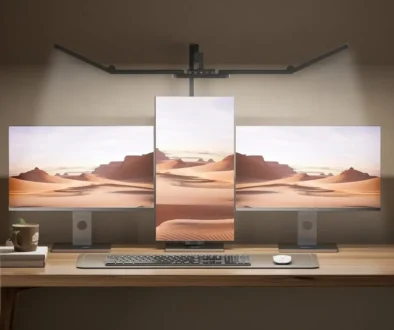
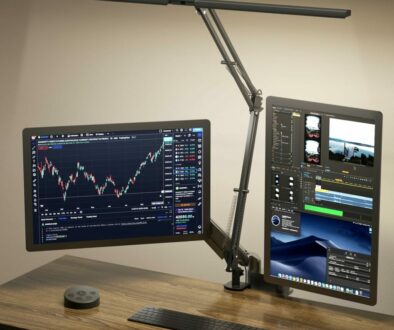
6. Portable Monitor (For Dual-Screen Creative Workflows)
The problem: The Neo’s 13-inch display is beautiful, but creative work thrives on screen real estate. Timelines, palettes, reference images, and toolbars quickly crowd a single small screen.
The solution: A portable USB-C monitor that gives you a second screen anywhere—library, coffee shop, dorm desk.
What to look for (for creative work):
- IPS panel for accurate colours and wide viewing angles
- 2.5K or 4K resolution (1080p is too low for detailed photo/video work)
- USB-C connection with single-cable power and video
- 400+ nits brightness for well-lit environments
- Foldable cover/stand that doubles as protection
- 100% sRGB coverage minimum (look for DCI-P3 if you can afford it)

Recommendation: ASUS ZenScreen MB16ACV: 15.6-inch, 1080p (good but not great for detailed work). Reliable, well-built. ViewSonic VA1655: 15.6-inch, 1080p, USB-C, includes a built-in stand. Arzopa Z1FC: 16.1-inch, 2.5K resolution, 144Hz refresh rate, excellent value for creative work. EVICIV Portable 4K 16-inch Monitor 1 ms FreeSync 1200nits bright monitor.

Why this matters: A second screen doubles your productivity. Keep your timeline or canvas on the Neo and your tools, bins, or reference images on the portable monitor. For video editors and designers, this is transformative.
The budget alternative: Use an iPad with Sidecar. If you already own an iPad, you can use it as a wireless second display for your Neo. It’s not as fast as a wired connection, but it’s free.
Build Your Creative Rig in Phases
You don’t need to buy everything at once. Here’s a sensible roadmap for the creative student on a budget:
Phase 1: The Essentials (£100–£150)
- External SSD (1TB) – £80
- SD card reader – £15
- Pop filter (for your existing headset mic) – £5
What you can do now: Offload footage, back up your work, and improve vocal recordings instantly.
Phase 2: The Audio Upgrade (£80–£150)
- Noise-cancelling headphones – £60–£80 (Anker Soundcore)
- USB microphone – £35–£50 (Fifine or similar)
What you can do now: Record clean voiceovers, monitor your audio accurately, and focus for hours without distraction.
Phase 3: The Professional Polish (£100–£200)
- Drawing tablet – £50–£80
- Portable monitor – £120–£180
What you can do now: Illustrate, retouch photos, edit video on a dual-screen setup, and work from anywhere with a proper creative workspace.
Total Investment for a Complete Creative Setup: £280–£500
For less than the cost of upgrading to a MacBook Pro, you’ve turned your £499 MacBook Neo into a fully-fledged creative workstation with:
- Professional-grade storage and backup
- Studio-quality audio capture and monitoring
- Precision input for illustration and design
- Dual-screen productivity anywhere

Your Portfolio Deserves Better Than “Good Enough”
The MacBook Neo is not the most powerful laptop Apple makes. It won’t render 8K video as fast as a MacBook Pro, and its 8GB RAM limit means you’ll need to be disciplined about multitasking.
But here’s the secret that successful student creators understand: your tools matter less than your skills and your workflow.
A £50 external SSD that backs up your work automatically is more valuable than a faster processor when your laptop gets stolen. A £60 pair of noise-cancelling headphones that lets you focus for four hours straight is more valuable than a brighter screen. A £35 microphone that captures your voice clearly is more valuable than a thousand pounds of software you don’t know how to use.
The accessories in this guide aren’t about keeping up with the pros. They’re about building a reliable, capable, focused creative workflow on a student budget. Buy smart, buy in phases, and spend your money on the things that actually improve your work—not the things that just look good on a spec sheet.
Your MacBook Neo is ready. These six accessories will help you make something worth remembering.
This article is part of Colour My Tech’s MacBook Neo accessory series. For more guides on power adapters, protection, connectivity, and ergonomics, explore our complete student accessory collection.